What changes when the results come to you
The scoring, the bands and the profile are the same as they have always been. What changes is where they are and what you can do with them.

You stop leaving the tool you are working in.
Your results arrive in the assistant that is already open, next to whatever else you are doing. No second tab, no export, no going to look something up and losing the thread of what you were writing.

You ask instead of choosing.
There is no menu of filters we designed in advance and no report we decided you would want. You phrase the question however it came out of your head, and the answer comes back against your own results.

Your results and your own work end up in one place.
The assessment result and whatever else you have in front of you can be read together, which is something no dashboard can do, because the dashboard only ever holds our half of it.
None of that changes the science. It changes how far you are from it.

Everyone sees what they are already allowed to see
Access rights are the first question most HR teams ask about this, so it is worth answering before anything else.
Connecting an assistant does not change who can see what. Each person adds the connection under their own Bryq account, and what comes back is exactly what that account already permits, governed by the same roles your administrator has already configured. Nobody's access widens by a single record, and nothing is pooled into a shared view.

If someone cannot see a candidate in Bryq today, they cannot see that candidate through their assistant either.
What you can reach
Through the connection, your assistant can read:

Your own results.
Candidate outcomes from your Bryq account, exactly as your account holds them.

Bryq's scoring and recommendations.
Not raw numbers on their own. The scoring already sitting in your account, and what Bryq recommends on the basis of it.

One candidate, a set of them, or a whole role.
Pull a single person, a shortlist you name, or everyone who applied.

Narrowed however you need it.
By job, by department, by date, by score or by candidate name.
What Bryq measures
The connection does not invent a new kind of data. It reaches what Bryq already produces.


Profile Fit covers cognitive ability across four attributes, Attention to Detail, Logical Reasoning, Numerical Reasoning and Verbal Reasoning, together with 16 personality traits, plus indicators covering Learning Agility, Empathy, Communication, Leadership Effectiveness and Remote Working.

Skill Tests span 140 plus assessments, hard, soft, hybrid, job-specific and AI Fluency, each scored 0 to 100.
Score bands are the same across every assessment type.
Poor
Average
Good
Exceptional
0 to 39
40 to 59
60 to 79
80 to 100
What that looks like in practice
Some examples of what can be asked once the connection is in place:

"List everyone in the Customer Support department who completed an assessment since 1 August and group them by score band."
"Summarise this candidate's profile in a few lines I can paste into my interview plan."
"Which candidates for this job sit in the Exceptional band, and what is each one strongest at?"
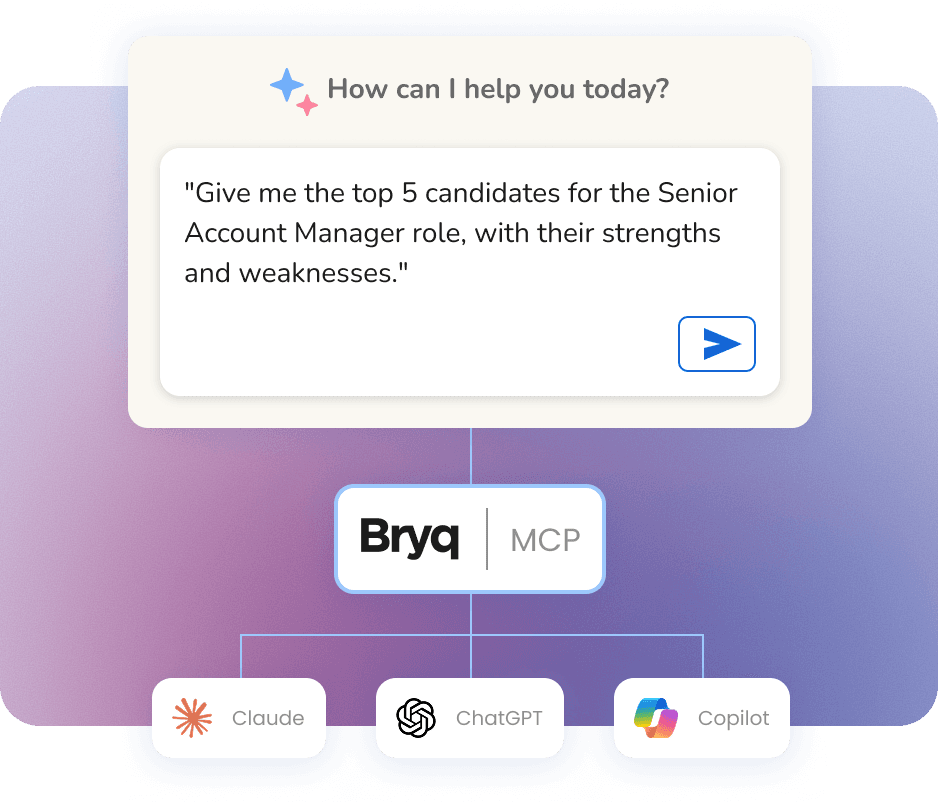
"Give me the top 5 candidates for the Senior Account Manager role, with their strengths and weaknesses."
"Compare these three candidates against the role profile and tell me where each one is weakest."
All of them are asked in plain language, against your own results.
Your results, next to your own hiring documents
This works only when your own hiring material is open in the same chat. The job description, the intake notes from the hiring manager, the interview plan.
When they are there, your Bryq results can be read against them, without exporting anything first. You can hold a candidate's results up against the role they were assessed for and see where the two pull apart. You can ask for a short summary of a candidate's results to paste into your interview plan.

We spent years deciding which questions belonged on a screen. Every one of those decisions was a guess about what a customer would need to ask. This release changes who does the asking. Our science and our scoring go into the workspace where our customers already do their thinking, and the questions are theirs.
- George Kalyvas, CEO at Bryq
What it does not do
Three things the connection does not do.
The connection is read-only.
It reads from Bryq. It does not create assessments, send invitations, move candidates between statuses, or change anything at all inside your Bryq account. Read-only is the current scope, and everything here describes what the connection does today.
It does not make the decision.
The scoring is Bryq's, already in your account. The connection reads it. The hiring decision stays with a person, and the connection does not change that.
It does not replace the Bryq app.
Everything you do in Bryq today, you still do in Bryq. This is an additional way to reach what is already there.
Who gets the most out of it
It fits three working patterns rather than a generic data dump.
1.
Recruiters working a live pipeline, who need to see a role's applicants sorted and compared without switching tabs mid-thought.
2.
Hiring managers preparing for a specific conversation, who want a candidate's results in front of them while they write the interview plan rather than in a tab they have to go and find.
3.
HR admins and people analytics looking across roles and departments rather than at one person, and narrowing by job, department, date, score or name to get there.
Turning it on
The Bryq MCP is included in every Bryq plan. There is nothing to install and nothing to download. Bryq is a custom connector, which means you add it inside your assistant using Bryq's server address, then sign in with your Bryq account.
Bryq's server address:
Then ask your first question.
Naming a specific job is usually the quickest way in.
Each person on your team adds the connection under their own account, and each sees what their own Bryq account already permits.
If you are already a Bryq customer, you can do this yourself right now. If you would like someone to walk your team through it, book a demo and we will.
The platform underneath
The scoring that reaches your assistant is the same scoring Bryq customers already hire on.
Bryq is the talent assessment platform that helps HR teams improve quality of hire and reduce early attrition. We measure cognitive ability, personality traits, and hard skills including AI fluency in one integrated candidate profile, validated by I/O psychologists.
2x
Faster hiring
47%
Lower attrition
3x
Quality of hire
ATS-integrated in under a week.
Granicus, using Bryq, reported a 63% decrease in employee churn and 40% faster hiring.
FAQ
Find answers to the most frequently asked questions about Bryq